Run DeepSeek with Ollama for Offline Ctrl+K Inline Diff
Step-by-step setup guide for connecting Ollama (localhost:11434) to NexusNote for 100% private, zero-token-cost, and instant keyboard-driven prose rewriting.
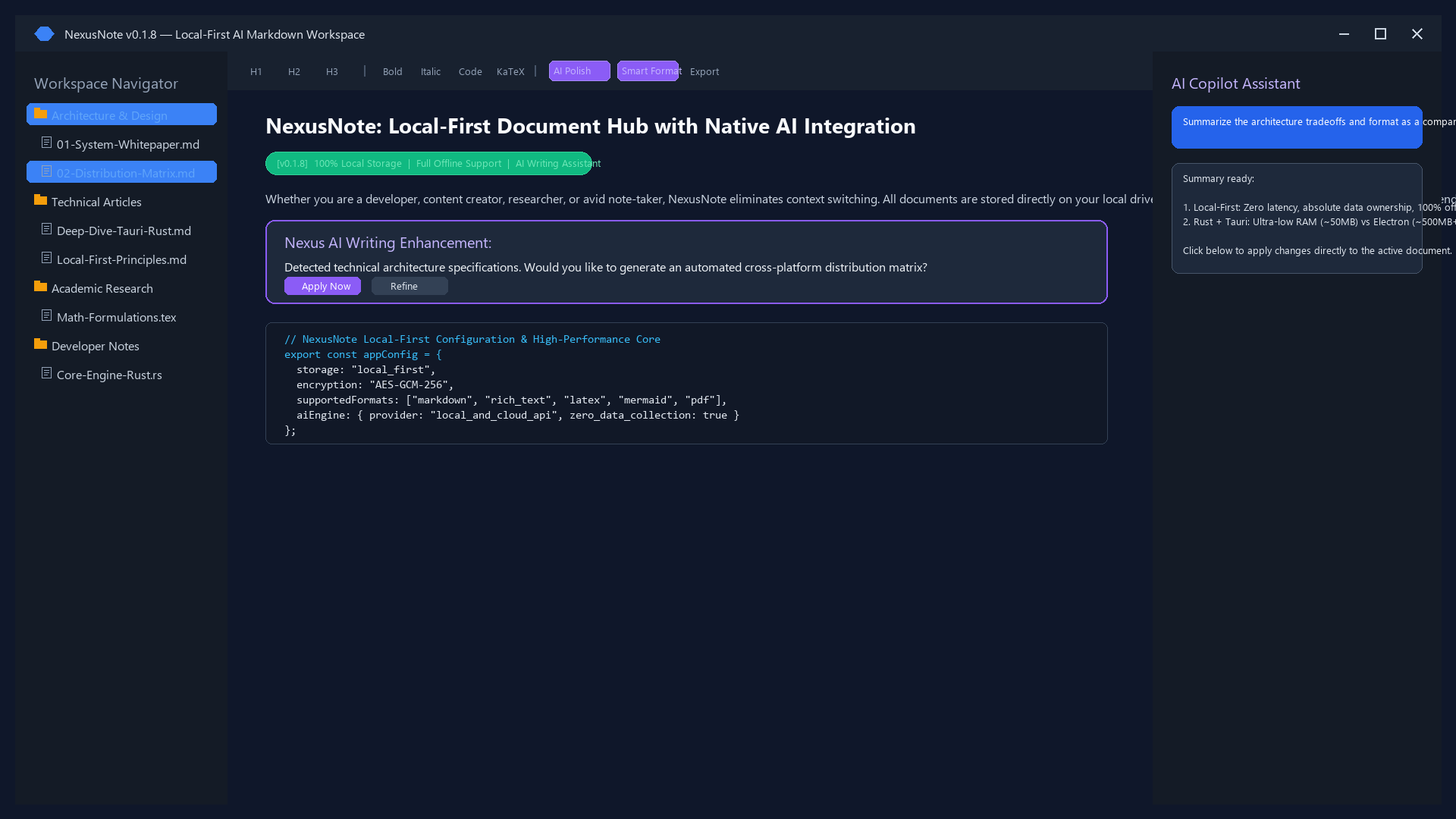
Key Takeaways
- Install and launch Ollama on Windows with GPU acceleration (NVIDIA CUDA / AMD ROCm).
- Pull recommended writing models: DeepSeek-R1-Distill-Qwen-7B or Qwen2.5-7B-Instruct.
- Configure custom model endpoints in NexusNote in under 30 seconds.
- Use Ctrl+K to trigger inline diffs, accept with Tab or reject with Esc.
1. Pulling the Ideal Local Writing Models
Ollama makes running state-of-the-art open models on your local PC seamless. For writing, summarizing, and line-by-line prose revision, we strongly recommend:
• `deepseek-r1:7b` (DeepSeek-R1-Distill-Qwen-7B): Exceptional reasoning, logic validation, and nuanced prose rewriting.
• `qwen2.5:7b`: Unmatched Chinese and multilingual fluency with high adherence to strict formatting constraints.
# 1. Pull DeepSeek-R1 7B Distill
ollama pull deepseek-r1:7b

# 2. Or pull Qwen 2.5 7B
ollama pull qwen2.5:7b

# 3. Verify server is running on default endpoint
curl http://localhost:11434/api/tags
2. Configuring NexusNote Settings to Connect in 30 Seconds
Open NexusNote Settings (Ctrl+,). Navigate to "AI Provider" and select "Local Ollama".
Ensure the API Endpoint is set to `http://localhost:11434`. Click "Test Connection". NexusNote will automatically discover your downloaded models and populate the dropdown menu.
Now highlight any text in your document, press Ctrl+K, and enter your writing prompt. The edits appear immediately as side-by-side green additions and red deletions. Hit Tab to accept!
3. Choosing a Model Size That Matches Your GPU
A 7B model quantized to 4 bits needs roughly 5–6GB of VRAM including context. An 8GB card can run it comfortably; a 6GB card needs a shorter context window or partial CPU offload. A 14B model at 4-bit needs about 9–10GB, and a 32B model needs 20GB or more. If the model does not fit, Ollama silently offloads layers to the CPU and token generation drops to a crawl.
Check the split before blaming the editor. Run `ollama ps` while a generation is active: the `PROCESSOR` column shows the GPU/CPU split, and `ollama run <model> --verbose` prints tokens per second. A healthy 7B model on a modern GPU produces 25–60 tokens per second; single-digit throughput means you are running mostly on CPU.
For prose revision, 7B is usually the sweet spot. Larger models reason better but respond slower, which breaks the Ctrl+K flow where you want a diff in two or three seconds. Choose the smallest model that passes your own blind review: generate the same rewrite with 7B and 14B, hide the labels, and keep the smaller one if the quality difference is negligible.
4. Prompt Patterns That Produce Reviewable Diffs
Inline rewriting works best when the instruction is narrow. Instead of "make this better", specify the operation: "remove hedging phrases without changing technical claims", "rewrite in active voice, keep every number and product name", or "shorten to under 80 words, preserve the final sentence". A narrow instruction produces a small diff that a human can verify in seconds.
Always include invariants. Names, numbers, code identifiers, quotations, and citation markers must be copied verbatim; if the model changes one, reject the diff. State this explicitly in the prompt and again in your team style guide. A rewrite that silently changes `pgx v4` to `pgx v5` is worse than no rewrite at all.
For long documents, give the model the surrounding context instead of only the selection. In NexusNote, the folder-backed workspace can inject the chapter outline and character sheet; in Photonix, the active file and selection are already available. Keep the injected context small and stable so the diff does not drift between runs.
5. Troubleshooting: Refused Connections, Slow First Token, Garbled CJK
Connection refused almost always means the Ollama daemon is not running or is bound to a different interface. Start it with `ollama serve`, confirm `curl http://localhost:11434/api/tags` returns JSON, and check that no corporate proxy is intercepting localhost. If you changed `OLLAMA_HOST`, update the endpoint in NexusNote to match exactly, including the port.
A slow first token with fast subsequent tokens is usually prompt processing, not a broken model. Long selections, large injected context, and cold GPU caches all increase the first-token latency. Reduce the selection, keep the context under a few thousand tokens, and run one warm-up generation after launching the model. If every token is slow, revisit the VRAM split from section 3.
Garbled Chinese or Japanese output usually comes from a model that was not trained for CJK or from a truncated context. Prefer Qwen2.5 or DeepSeek distill variants for CJK prose, set the output language explicitly, and avoid mixing a long English system prompt with a short Chinese selection. If the garbling persists, test the same prompt directly with `ollama run` to isolate the editor from the model.
6. A Minimal Evaluation Plan Before Committing
Do not evaluate a local model with one clever prompt. Pick five representative tasks from your actual work: a paragraph rewrite, a summary of a long note, a translation, a factual extraction with numbers, and one task the model is likely to fail. Run the same five prompts against two model sizes and record latency, acceptance rate, and the kind of errors each makes. Fifteen minutes of structured comparison beats a week of vague impressions.
Include a failure review. For each rejected output, note whether the failure was instruction following, factual drift, formatting, or truncation. Different failures have different fixes: a smaller context, a stricter prompt, a bigger model, or a different task decomposition. If most failures are factual, no amount of prompt engineering will make a 7B model safe for that task; route it to a frontier model or keep it human-reviewed.
Finally, write down the decision and its expiry date. "Use qwen2.5:7b for chapter-level polish; revisit when the 14B model runs comfortably on the new GPU" is a decision. "Try local AI" is not. The expiry matters because hardware and models change quickly, and a decision made for last year's laptop may be wrong for this year's workstation.
Explore the full production solution architecture
Frequently Asked Questions
Does running Ollama locally consume my daily free AI credits?
No! Local Ollama models run 100% on your own GPU/CPU hardware. You get completely unlimited generations, zero token fees, zero rate limits, and zero credit deductions.
How much VRAM do I need to run a 7B model smoothly?
About 5–6GB for a 4-bit quantized 7B model with a moderate context window. An 8GB GPU is comfortable; 6GB works with a shorter context or partial CPU offload. Use `ollama ps` to confirm the model is running on GPU rather than mostly on CPU.
Can NexusNote connect to LM Studio instead of Ollama?
Yes. LM Studio exposes an OpenAI-compatible server (default http://localhost:1234/v1). Configure it as a custom OpenAI-compatible provider in NexusNote and select the loaded model. The same privacy and zero-credit rules apply because inference runs entirely on your machine.
Continue Reading
Export Markdown to Social Cards and Long Images
Local Database & SearchInstant Full-Text Search in 180MB PDF Manuals with Local FTS5 Indexing
Creative WritingManaging 500,000-Word Multi-Chapter Novel Manuscripts with AI Plot Tracking
ComparisonFree Typora Alternative
ProductNexusNote
Experience Extreme Performance with NexusNote
Local-first native architecture, 12ms cold load, 100 free daily AI credits, and zero telemetry.